myTax is a tax filing software provided by the Australian government, used by millions of people annually. If you have crypto gains or income, additional steps are needed to ensure accurate reporting.
This guide will walk you through how to file your crypto taxes on myTax using cryptact, a crypto tax software, for the 2025-26 financial year.
Before you move on to the next section, we recommend you understand crypto tax. Learn everything you need to know about crypto tax by clicking the link at the bottom of this article.
Keen to learn more about how crypto is taxed in Australia? This guide has you covered:Understanding Crypto Tax in Australia: A Comprehensive Guide
Table of contents |
No credit card required
How to file crypto taxes on myTax using cryptact
Here are your step-by-step instructions on how to report crypto gains, losses, and income using ATO myTax.
Step 1. Gather Required Documents
Before you go to the myTax site, you need to gather all required documents. Income statements from your employer, details of taxable Centrelink payments, and private health insurance information can be downloaded directly into your tax return.
In addition to these, you’ll also need to collect additional information, which includes:
- Your Tax File Number (TFN)
- Your bank account details
- Interest income
- Details of any other tax offset information
- Tax deductions
- Details of any additional income, including income from crypto
Important Numbers to Gather
You will need the following numbers for your crypto tax reporting:
- Total current year capital gains
- Net capital gain
- Net capital loss carried forward to later income years
To get these numbers, gather all transaction history from the platforms you used. As you trade more and across multiple platforms, calculating these figures manually can become challenging.
Using a crypto profit and loss tool like cryptact can solve this problem.
Simply connect your wallets and exchanges, and let the platform generate the figures you need in minutes.
Step 2: Setting Up cryptact
Before you begin filing your crypto taxes with myTax, you need to set up cryptact to generate ATO-compliant tax reports.
Here’s how:
- Sign Up for cryptact: The signup process is free.
- Connect Your Wallets, Exchanges, and Blockchains: Use API integrations or upload CSV files or connect your wallet address.
- Allow cryptact to Calculate Your Data: It will automatically process your transactions. Note: cryptact’s support for DeFi profit and loss (P&L) transactions in Australian tax calculations is coming soon. You can check the current support status on our service news page.
- Review Your Summary: Ensure all data is accurate and download your tax reports. cryptact’s plans start at A$49.
Step 3: Filing Crypto Taxes on myTax
Here’s the step-by-step guide for using cryptact with myTax:
1. Log in to myGov
Go to the myGov website and log in to your account. If you don’t have an account, create one.
2. Navigate to ATO
Select “Australian Taxation Office” on myGov.
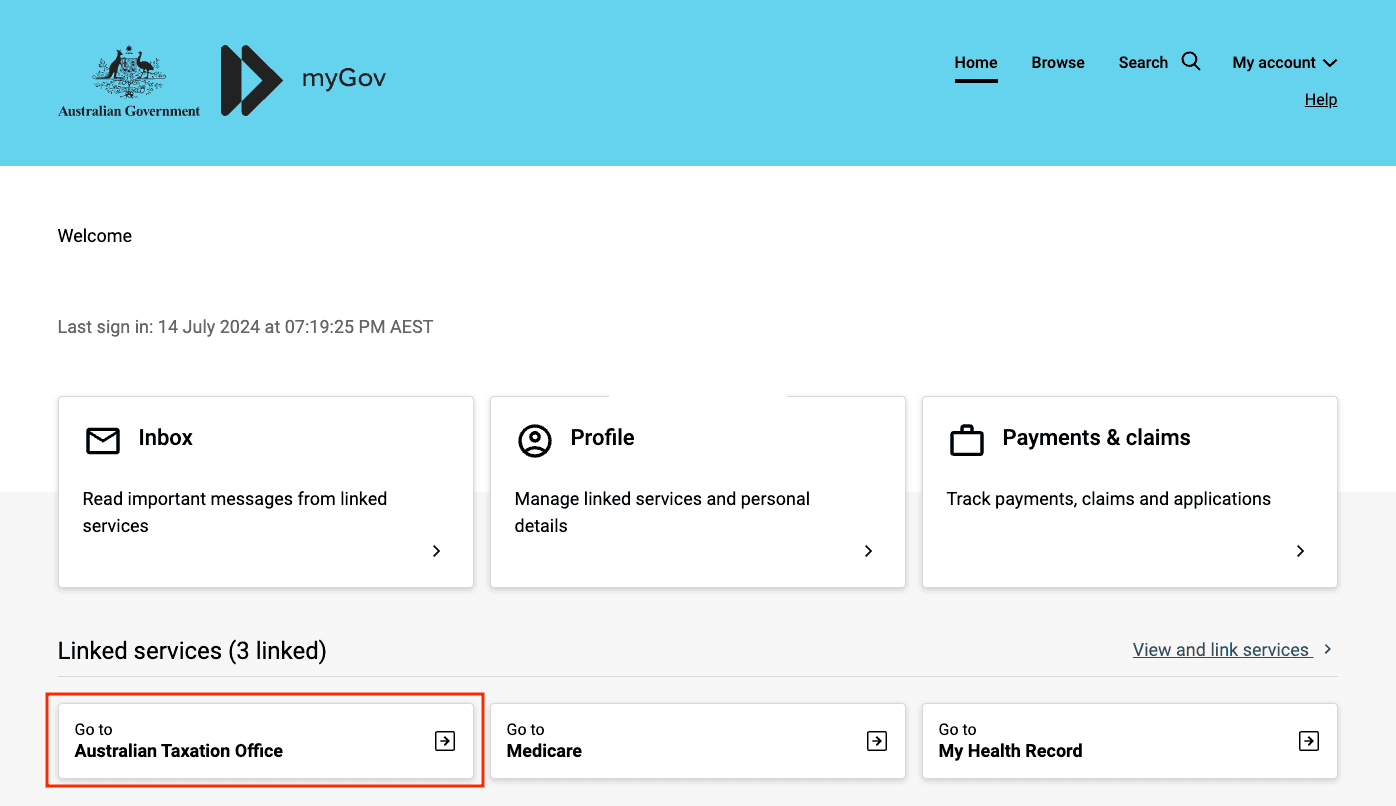
If not available you will need to link your myGov account to the ATO.
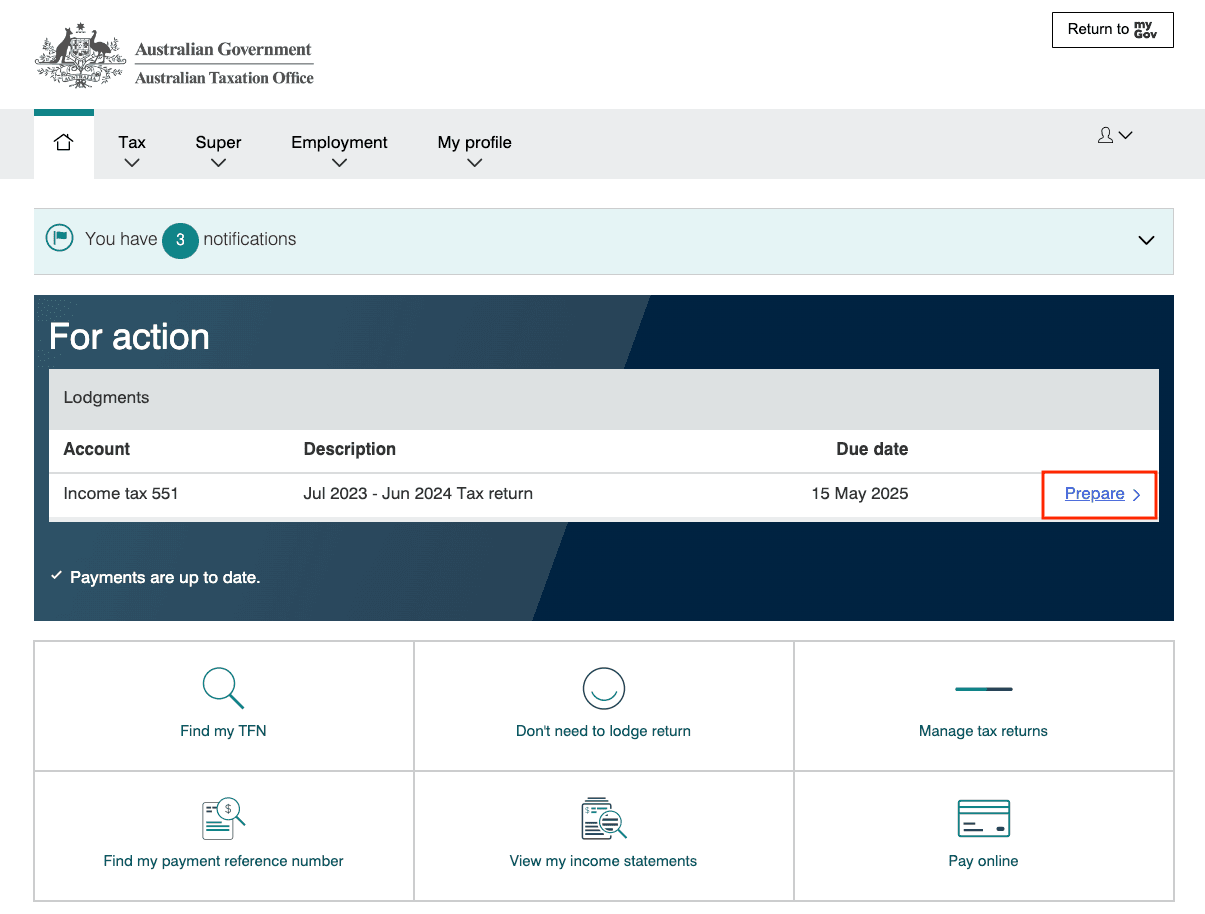
3. Prepare Tax Return in MyTax
Select “Prepare”.
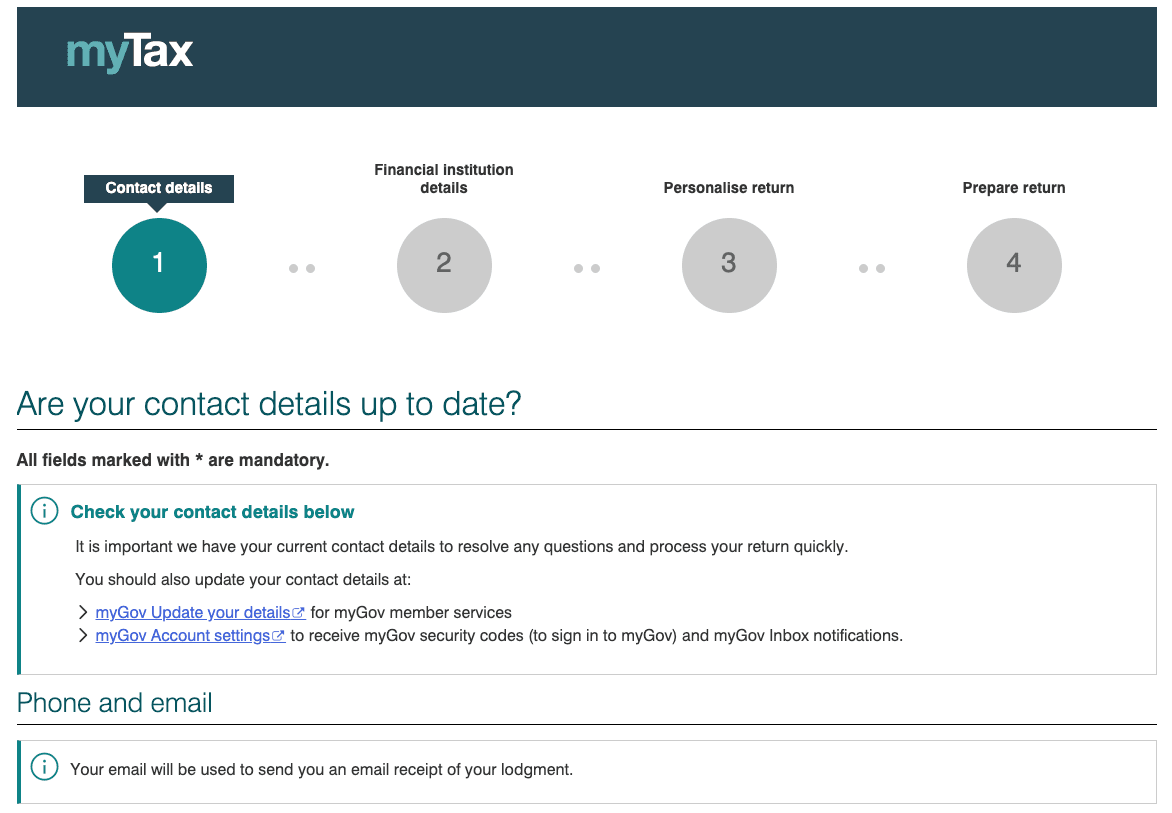
4. Verify Personal Information
Ensure your personal information and contact details are correct, then press “Next.”
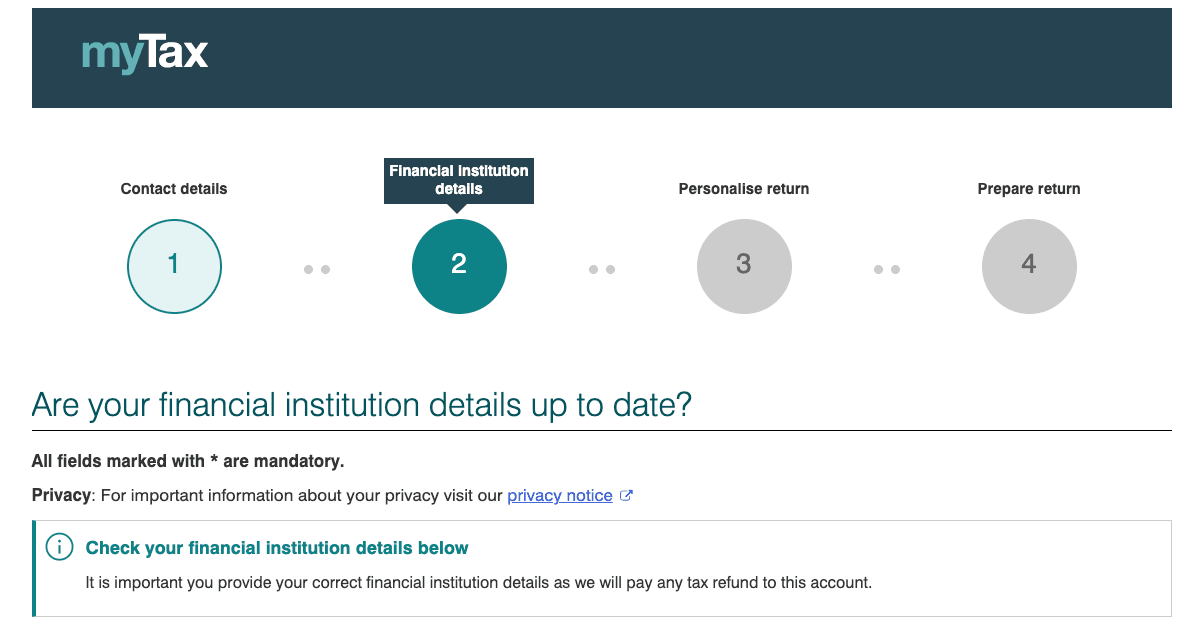
5. Update Financial Institution Details
Check that your financial institution details are up to date, then press “Next.”
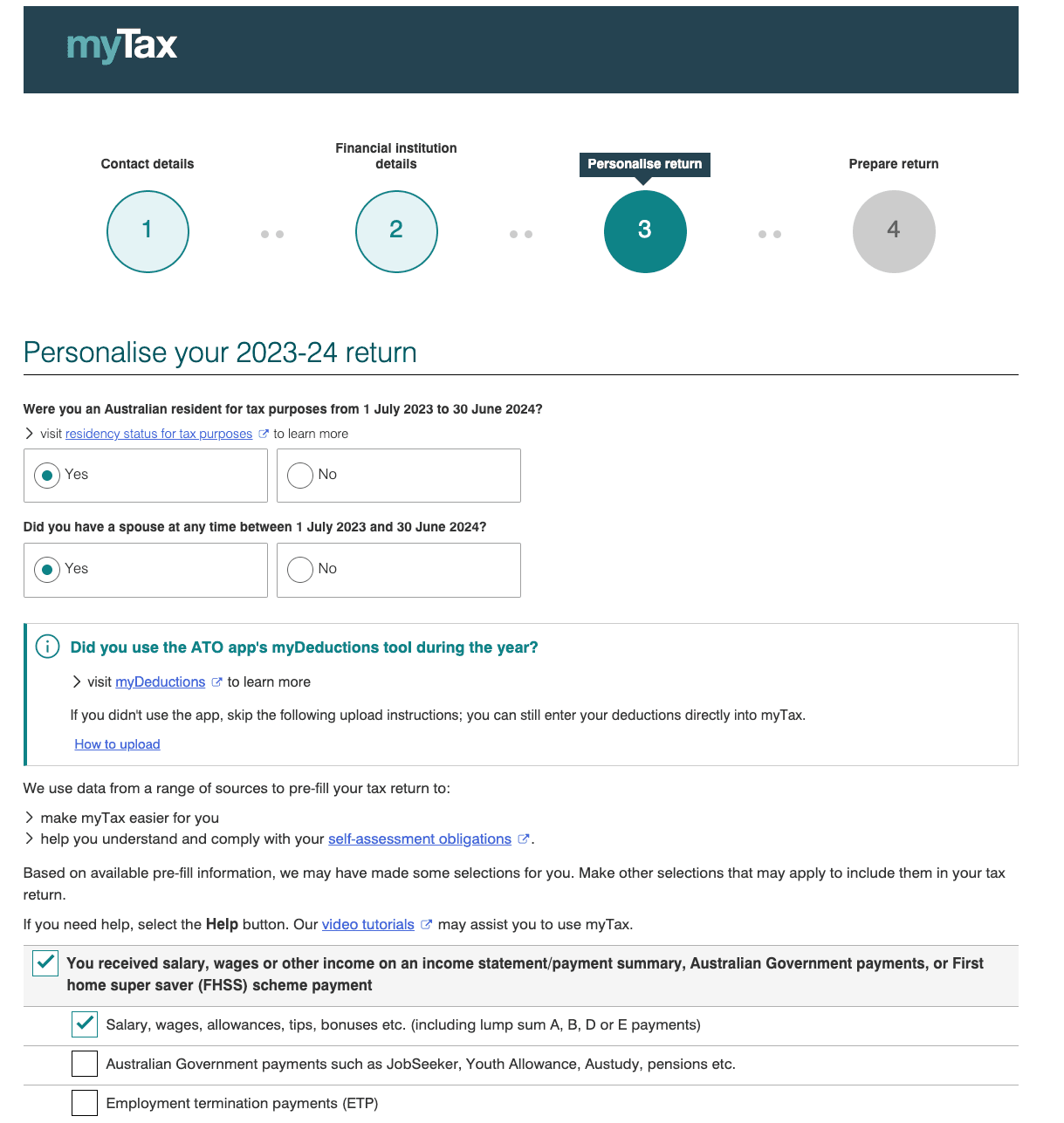
6. Personalize Your Return
Under the “Personalise your 2025-26 return” section, fill out your personal details as they apply to you.
7. Specify Crypto Investments
For crypto capital gains or losses, check “You had Australian interest, or other Australian income or losses from investments or property.”
From the new dropdown menu, select “Capital gains or losses that are not from a managed fund or trust distribution”.
For crypto income, check “You had other income not listed above.”
For deductions, check “You had deductions you want to claim,” and from the new dropdown menu, select “Other deductions.”
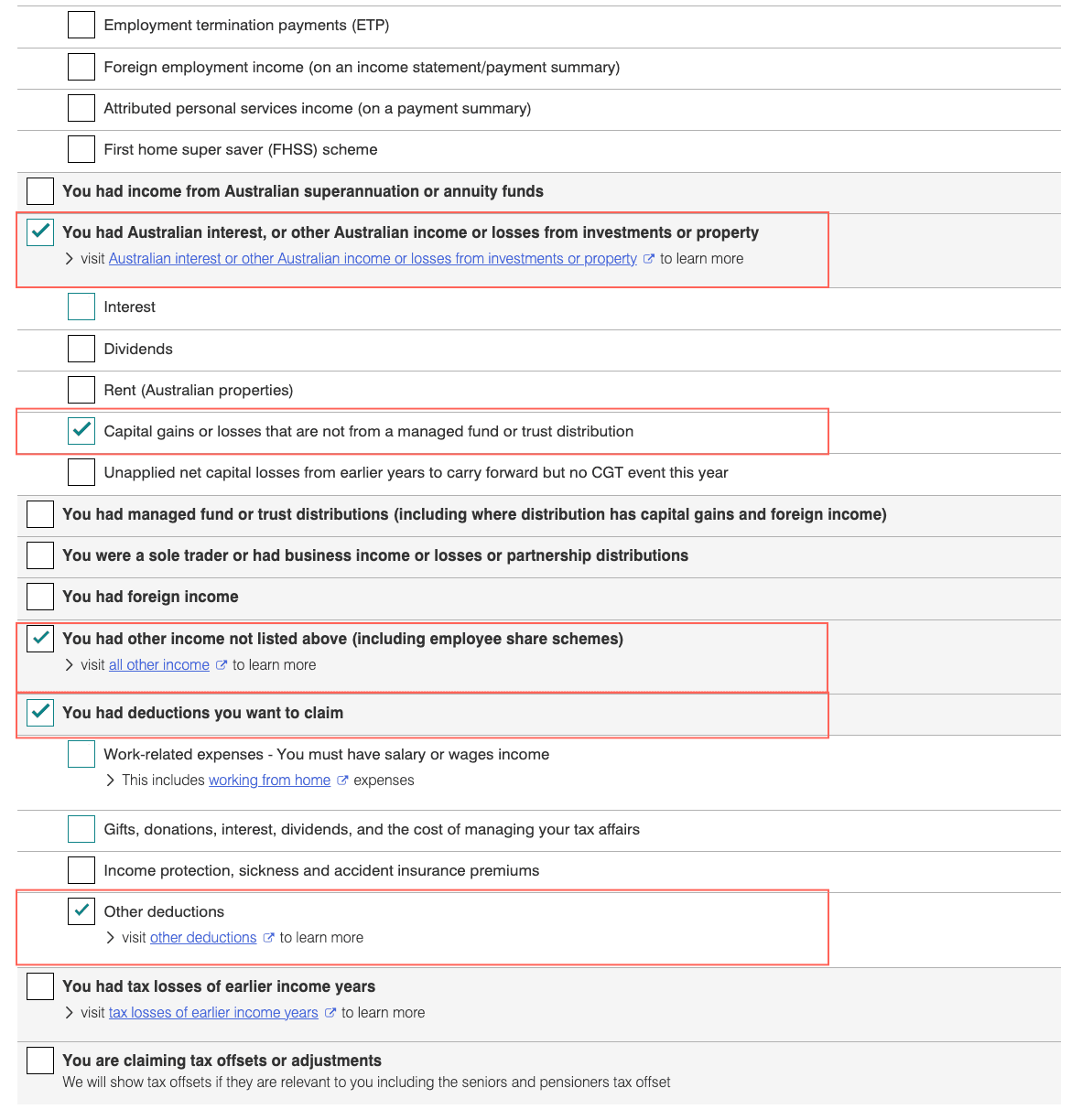
Complete the rest of this section as it relates to you and then select “Next.”
8. Prepare Your Return - Capital Gains or Losses
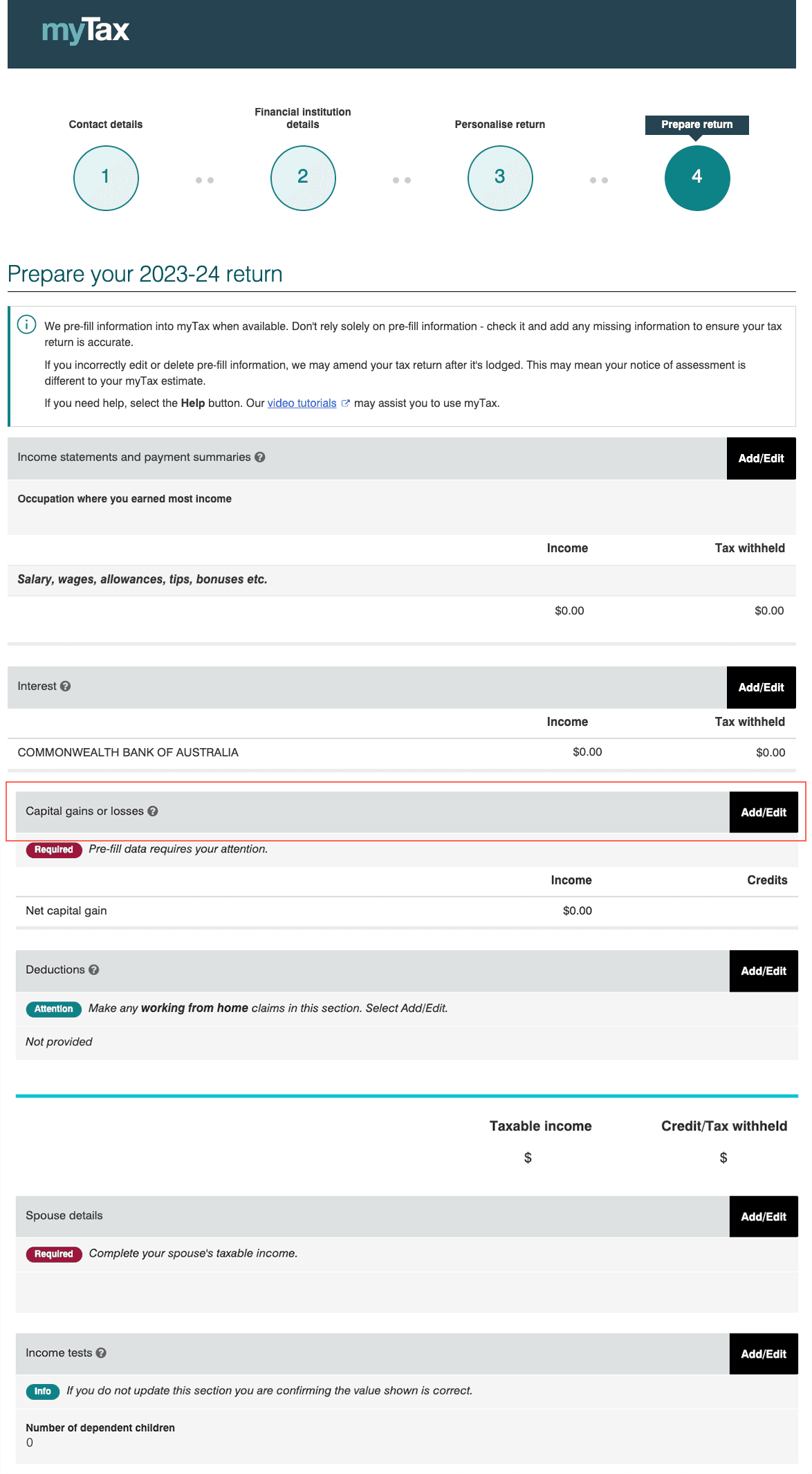
On the “Prepare return” page (Step 4), select “Add/Edit” next to “Capital gains or losses.”
Under “Total current year capital gains,” copy and paste the figure from the “Total current year capital gains” in your cryptact report (in the capital gains summary section).
Under “Net capital gain,” copy and paste the figure from the “Net capital gains after CGT discount” in your cryptact report. If you only have a capital loss for the year, enter this figure into the box under “Net capital loss carried forward to later income years.”
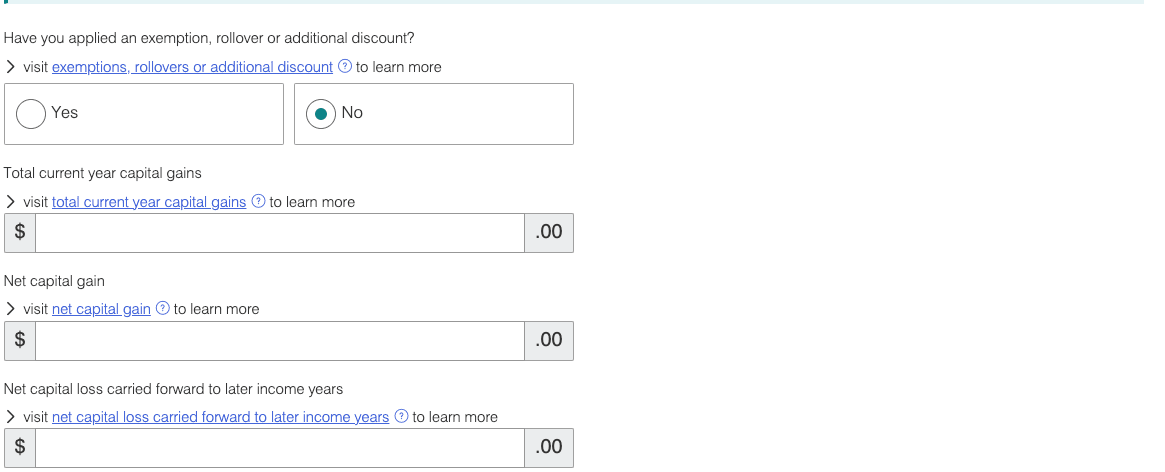
For the question, “Have you applied an exemption, rollover or additional discount,” select “no.” Press “Save and continue.”
9. Prepare Your Return - Crypto Income
On the “Prepare return” (Step 4) page, select “Add/Edit” next to “Other income”.
Next to “Any other income,” select “Add.”
From the dropdown menu under “Type of payment,” select “Other.”
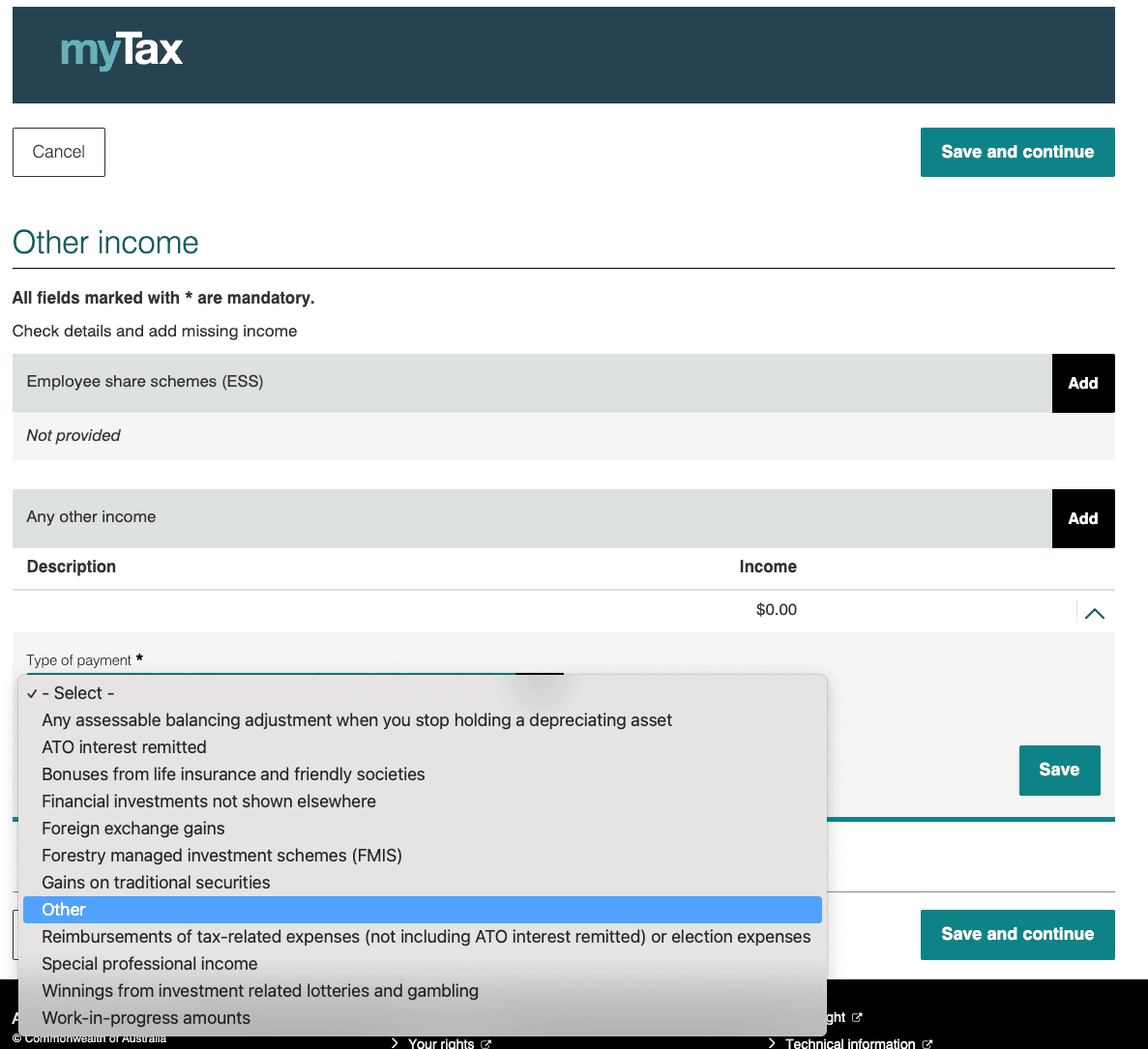
For the description, write a description of your income, such as “Staking rewards.”
In your cryptact report, in the “Other income summary” section, copy the total figure and paste it into the amount box. Select “Save” for it and then “Save and continue.”
10. Prepare Your Return - Deductions
On the “Prepare return” page (Step 4), select “Add/Edit” next to “Deductions.”
Next to “Other deductions,” select “Add.”
Following the same approach as earlier, from the dropdown menu under “Type of deduction,” select “Deductions relating to financial investments.” Enter a description, such as “Crypto expenses or margin fees.”
In your cryptact report, under “Expenses,” copy the total figure.
These are transactions tagged as costs by cryptact that are not included in your cost basis calculations and may be tax deductible, such as margin fees. Select “Save.”
11. Complete Your Tax Return
Complete the rest of your tax return as it relates to your investments.
Summary
This step-by-step guide should help you understand the filing process on myTax. Accurate calculations are essential for filing.
By leveraging tools like cryptact, maintaining meticulous records, and seeking professional advice, you can ensure compliance and optimize your tax obligations.
No credit card required